
Point of sale
A smarter way to manage everyday sales.
Process transactions, manage checkout, apply discounts, handle returns and keep every sale connected to your inventory. Vendriz brings your everyday retail checkout operations together in one place.
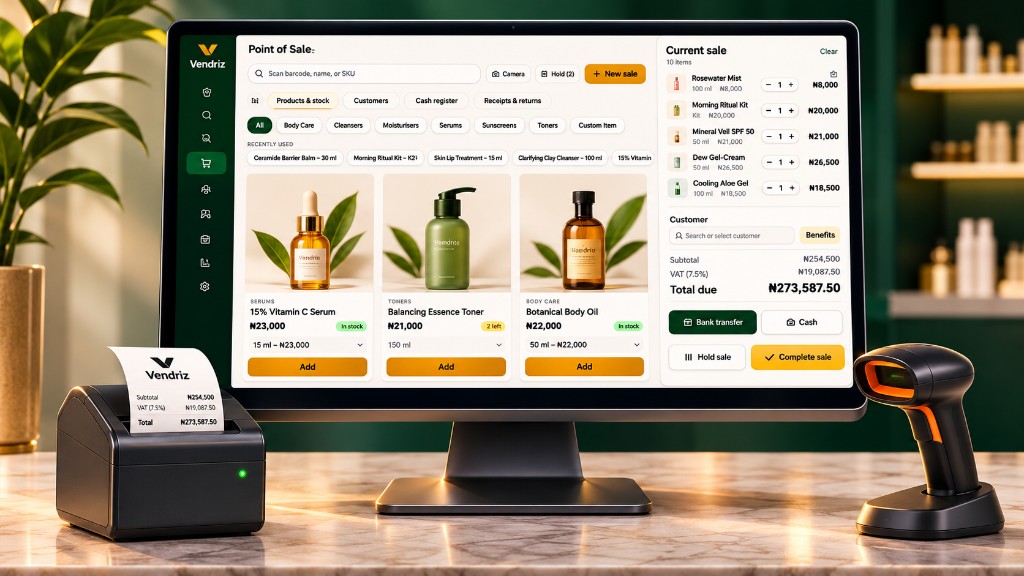
How it works
How the POS works.
Find products by searching the catalogue or scanning a barcode. Add items to the cart, adjust quantities, apply eligible discounts, record how the customer paid and complete the sale. Vendriz automatically updates inventory as sales are completed, keeping your sales and stock records connected.
Product search and barcode entry
Find products quickly by name or barcode. Add them directly to the cart and keep checkout moving.
Quantities and the cart
Adjust product quantities, review items and see the transaction total update as you build the cart.
Discounts and promotions
Apply eligible discounts during checkout. Higher-value discounts require the appropriate staff permission.
Returns and refunds
Process supported returns and refunds against completed sales, keeping the transaction history organised.
Everyday checkout
Everything your cashier needs to complete a sale, from finding products to reviewing the final total.
- Find products quickly: Search the catalogue by product name or enter a barcode to find an item.
- Select the right product: Choose the product and, where applicable, select the correct variant, such as size.
- Manage the cart: Adjust the quantity of each item before completing the sale.
- Review the total: See individual item prices and the transaction total update as you make changes.
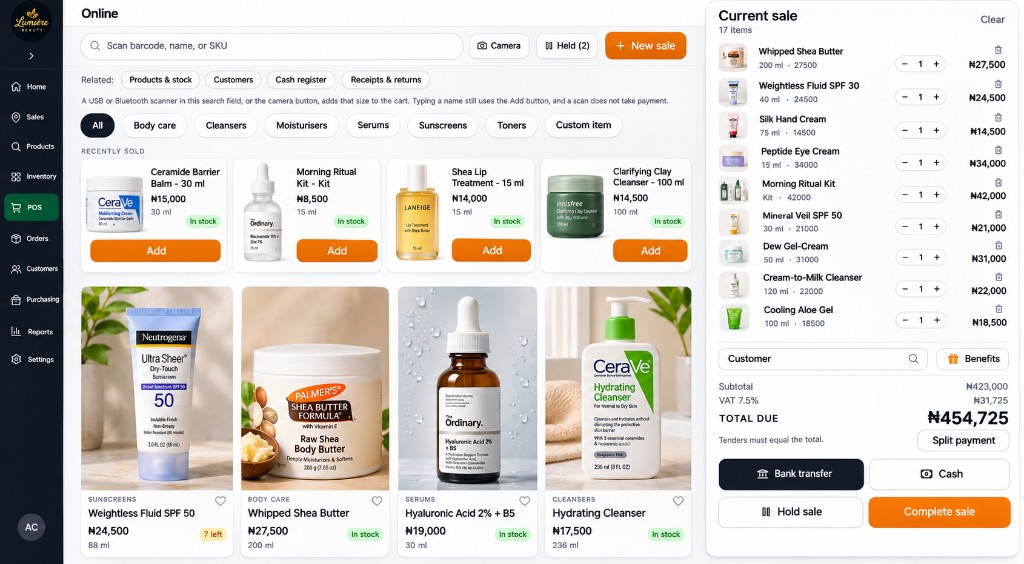
Discounts and promotions
Apply discounts and eligible promotions directly during checkout.
- Apply an eligible discount or active promotion to a sale without leaving the checkout screen.
- Discounts above the configured threshold require the `sales.discount_above` permission. By default, this permission is reserved for the owner.
- Every discount is recorded against the sale, keeping transaction records clear and traceable.
Returns and refunds
Manage returns and refunds against previously completed sales.
- Process a refund against a completed sale, with the action recorded under the staff member who processed it.
- Refunds using a different payment method require the `sales.refund_any_method` permission, reserved for the owner by default, and a written reason.
- A sale can only be voided while its original shift remains open and before any refund has been recorded against it.
Held sales
Put a sale on hold and return to it when you're ready.
- Hold the current basket while serving another customer, then resume the sale later.
- Held sales are not completed transactions. Inventory is only updated when the sale is completed.
Shifts and cash control
Maintain accountability for cash handled at checkout throughout the working day.
- Open a shift with a starting cash float and close it by entering the counted cash amount.
- Record cash movements, including deposits and paid-outs, during the shift.
- Any difference between the expected and counted cash is recorded as a shift variance. It is documented for review, not automatically corrected.
Offline checkout
Keep serving customers when your internet connection drops.
- Save cash sales and recorded bank-transfer sales on the device, then synchronise them with Vendriz when the connection returns.
- Card and online payments, gift cards, coupons, loyalty points and held sales require an active connection and cannot be queued offline.
- Queued sales remain clearly distinguished from transactions that have been successfully synchronised with the server.
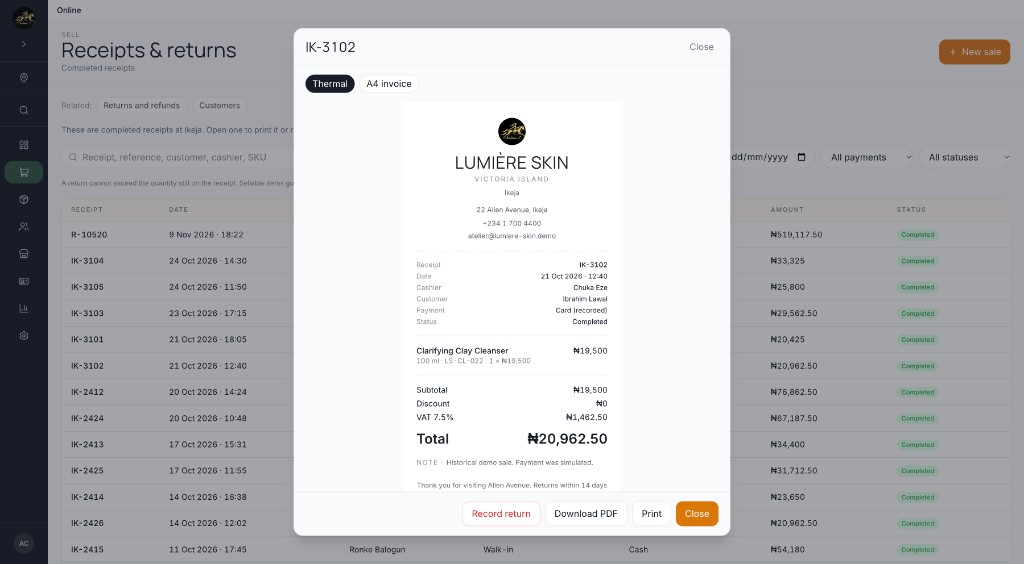
Receipts and transaction history
Keep a clear record of every completed sale.
- Generate a receipt when a sale is completed.
- Review completed sales by the staff member and branch responsible for the transaction, making it easier to trace sales activity later.
Why it helps
Keep your shop floor running smoothly.
Faster checkout
Help cashiers find products quickly by name or barcode and serve customers without unnecessary delays.
Accurate inventory
Every completed sale updates stock, keeping your sales and inventory records in sync.
No lost baskets
Put a sale on hold while serving another customer and pick up right where you left off.
Better cash control
Track the cash drawer throughout the day, from opening the shift to counting and closing.
In practice
A typical sale, from start to finish.
Step 1
Find the product
Search the product catalogue by name or scan its barcode.
Step 2
Add it to the cart
Select the product and choose the correct variant, such as size, where available.
Step 3
Set the quantity
Adjust how many units the customer wants to buy.
Step 4
Apply discounts
Apply an eligible discount or promotion, where applicable.
Step 5
Record the payment
Select how the customer is paying and record the payment details.
Step 6
Complete the sale
Finalise the transaction and generate the receipt.
Step 7
Update inventory
Stock quantities update automatically when the sale is completed.
Step 8
Review the transaction
Find the completed sale later in your sales history or Reports.
Connected, not separate
Your POS works alongside the rest of Vendriz.
Inventory
Every completed sale automatically reduces the available stock of the product variant sold, helping you keep inventory records accurate.
Learn moreMulti-Branch Management
Sales are recorded against the branch where they take place, giving you a consolidated view of activity across your business locations.
Learn moreReports
Completed sales contribute to your sales, staff and register reports, helping you understand how your business is performing.
Learn moreStaff Management
Every sale is linked to the staff member who completed it, with access to POS operations controlled by their assigned role and permissions.
Learn more
Who it's for
Built for everyday retail checkout.
01
Supermarkets and mini-marts
Keep checkout moving smoothly while handling frequent, everyday purchases.
02
Fashion retailers
Find products quickly and select the right sizes and other available variants.
03
Electronics retailers
Speed up product selection with catalogue search and barcode entry.
04
Beauty and cosmetics shops
Manage a varied product range and process everyday sales efficiently.
05
Growing retail businesses
Move beyond manual sales records and basic cash registers to a more organised checkout experience.
FAQs
Frequently asked questions
Straight answers about POS.
A card tender can be recorded where your shop has connected a payment provider. Recording a tender and processing a live card payment are different things, and a provider is not connected for every shop by default. Cash and recorded bank transfer are the methods every shop can record, including while offline.
Cash sales and recorded bank-transfer sales can be saved on the device and sent to the server once the connection returns. Card and online payments, gift cards, coupons, loyalty points and held sales need a connection.
A normal discount or a same-method refund is available to the roles your permissions allow. Discounts above a set level, and a refund by a different method than the customer paid, need permissions that only the owner holds by default.
A held sale is not a completed transaction, so it does not change stock. It stays available to resume until it is completed or removed.
Related features
Explore more of Vendriz.
Discover how these features work together to help you manage your retail business.
Bring your checkout and inventory together.
Process sales, record payments and keep your stock up to date with Vendriz.