
Inventory management
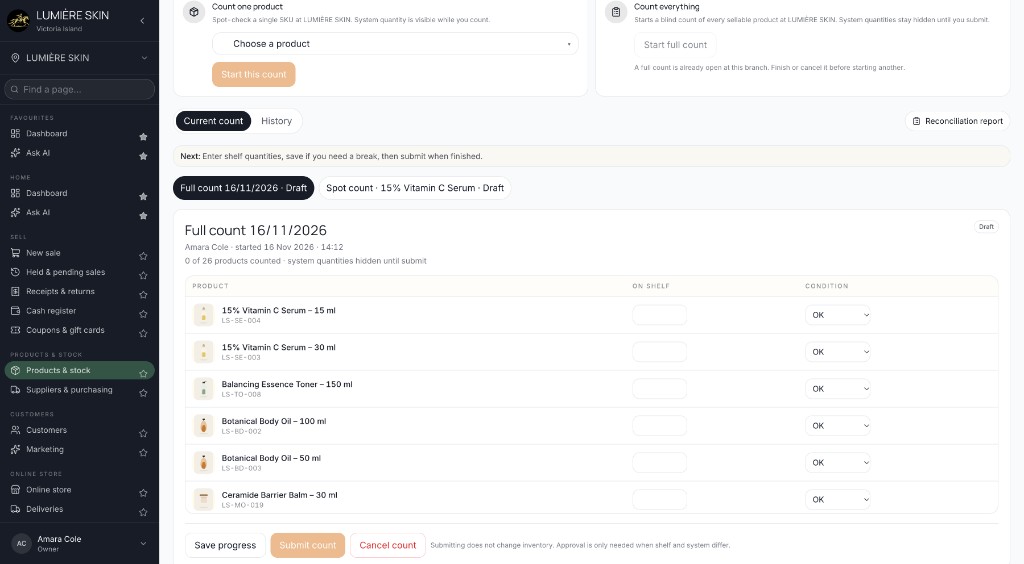
Running a stock count
How to plan, count, and post variances so on-hand stock matches the shelf.
Guide
Prerequisites
- Products already in the catalogue
- A defined location or zone to count
- Staff time blocked for the count window
Step 1: Choose the count scope
Decide full count versus a cycle of high-value or fast-moving SKUs. Smaller scopes finish faster and produce cleaner investigations.
Step 2: Prepare the floor
Pause sales into the zone if practical, finish open transfers, and make sure recent receipts are posted so you are not counting against stale books.
Step 3: Count and record
Count physical units against the correct SKU and location. For high-value items, use a second pass.
Step 4: Investigate and post
Large gaps deserve a reason check (wrong SKU, unreceived delivery, unrecorded breakage). Then post so on-hand matches the count.
Common mistakes
- Counting while deliveries are still being shelved without receiving
- Posting huge variances with no investigation
- Mixing two branches into one count sheet
- Never scheduling the next cycle for fast movers
Summary
Scope tightly, prepare the zone, count carefully, investigate big gaps, then post so recorded stock matches the shelf.
Keep reading
Related reading
Inventory management · 20 Mar 2026
How stock counts improve inventory accuracy
Discover why regular stock counts matter, how to organise counting activities and how to review differences between recorded and physical stock.
Read articleInventory management · 10 Mar 2026
Common inventory mistakes retailers should avoid
The habits that quietly destroy stock accuracy — and what to do instead so reports stay trustworthy.
Read articleMulti-branch management · 18 Mar 2026
Moving stock between branches
Transfer inventory from one location to another without breaking either branch’s on-hand figures.
Read guidePurchasing and suppliers · 22 Mar 2026
Receiving a purchase into inventory
Record supplier deliveries against purchases so on-hand stock and costs stay trustworthy.
Read guide
Next step
Put the workflow into practice
Get started with Vendriz, or contact us if you want help matching the product to your shops.